1. Overview
1a. Purpose
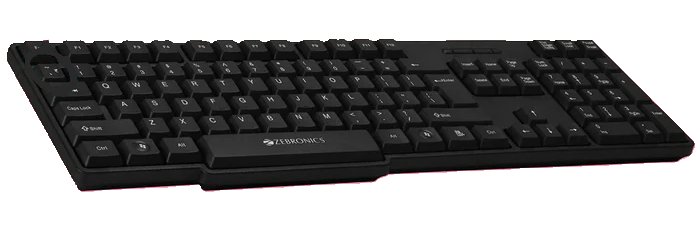
Keyboard: The primary function of a keyboard is to input text into the IFP panel, which is essential for creating documents, entering data, and teaching class.
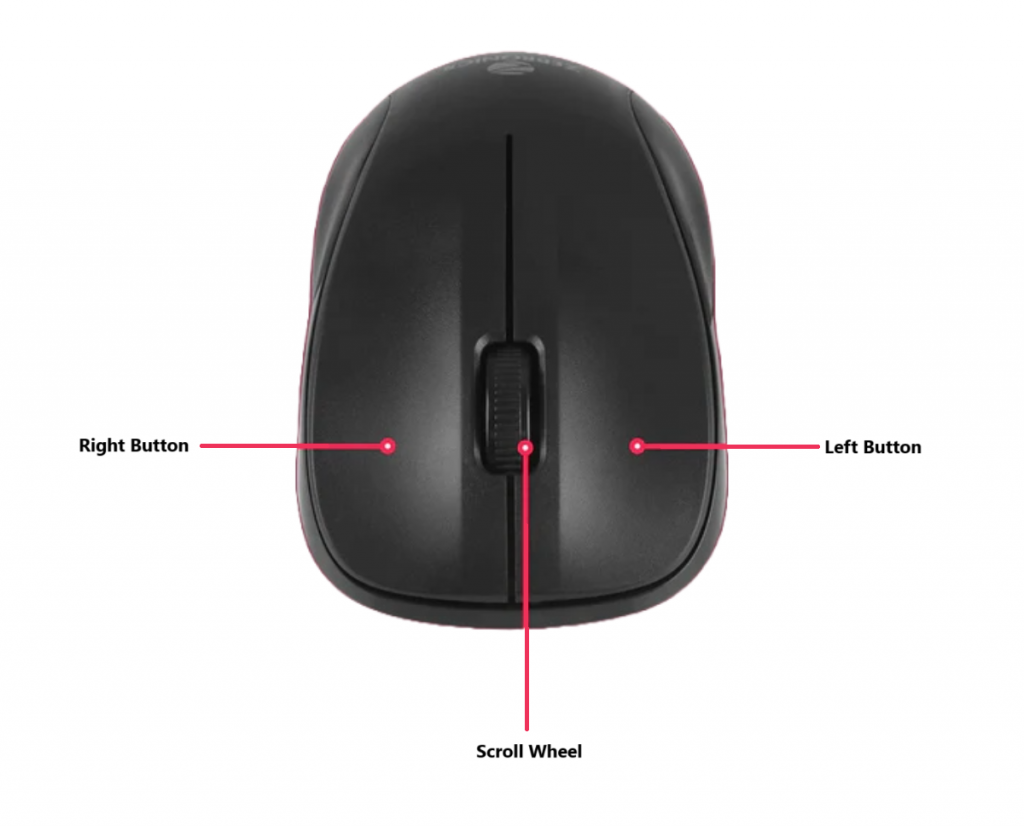
Mouse: The mouse controls the on-screen pointer, allowing users to navigate the computer interface, select items, and execute commands by clicking.
The scroll wheel enables smooth scrolling through documents and web pages, enhancing the user experience.
1b. Connectivity
The keyboard and mouse can be connected wirelessly to the IFP display via the nano receiver provided in the keyboard and mouse.
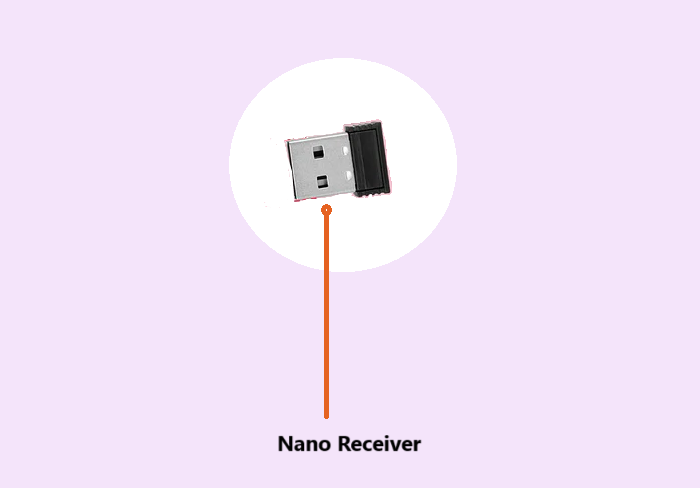
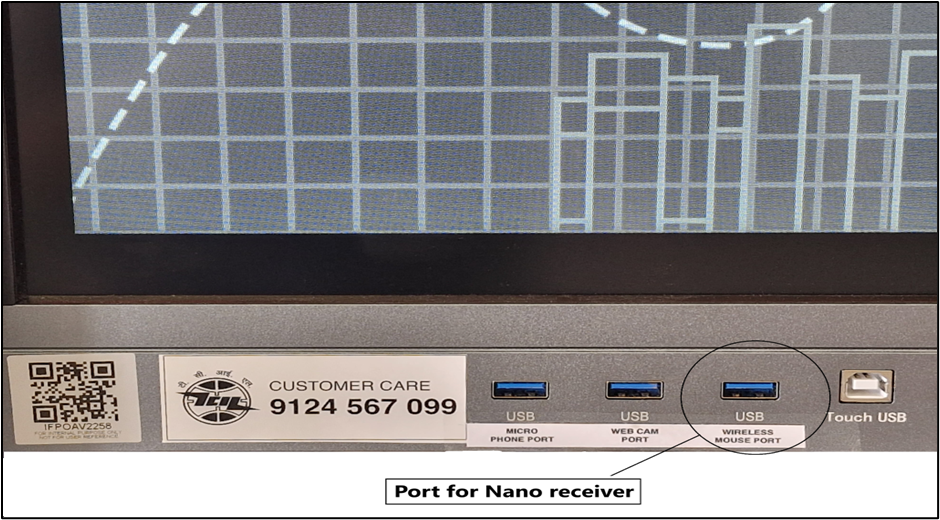
The Port with the “Wireless Mouse Port” mentioned is to be used to connect the Nano receiver of the keyboard and mouse.
1c. Placement
A vertical wall mount cabinet is placed just below the interactive Flat Panel. Both the keyboard and mouse are supposed to be placed inside the cabinet
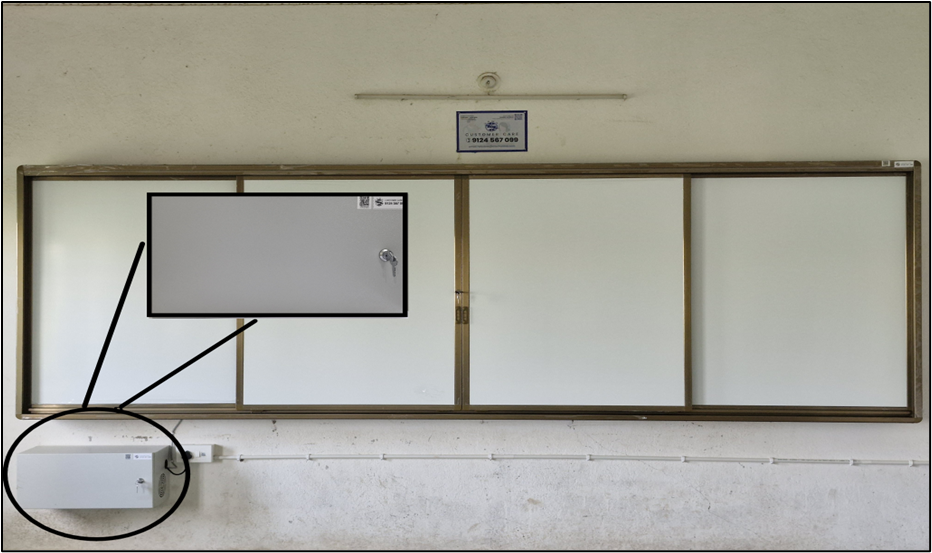
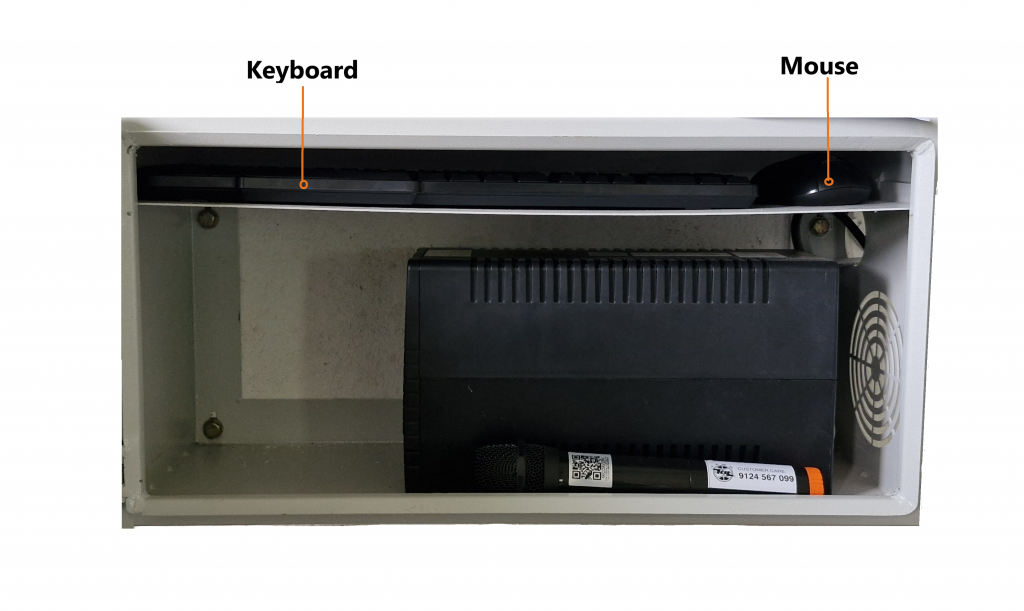
The mouse and keyboard are to be placed in the Vertical wall mount cabinet shelf provided, above the UPS unit.
NOTE: We have to make sure to keep the keyboard, mouse, and cabinet clean at all times.
2. Troubleshooting
- Ensure the USB receiver is securely plugged into the assigned USB port on the IFP display and both the mouse and keyboard are active.
- Make sure there is a red light indication below the mouse, and for the keyboard, we can press the Num Lock or Caps Lock to turn on the red light to check the connectivity.
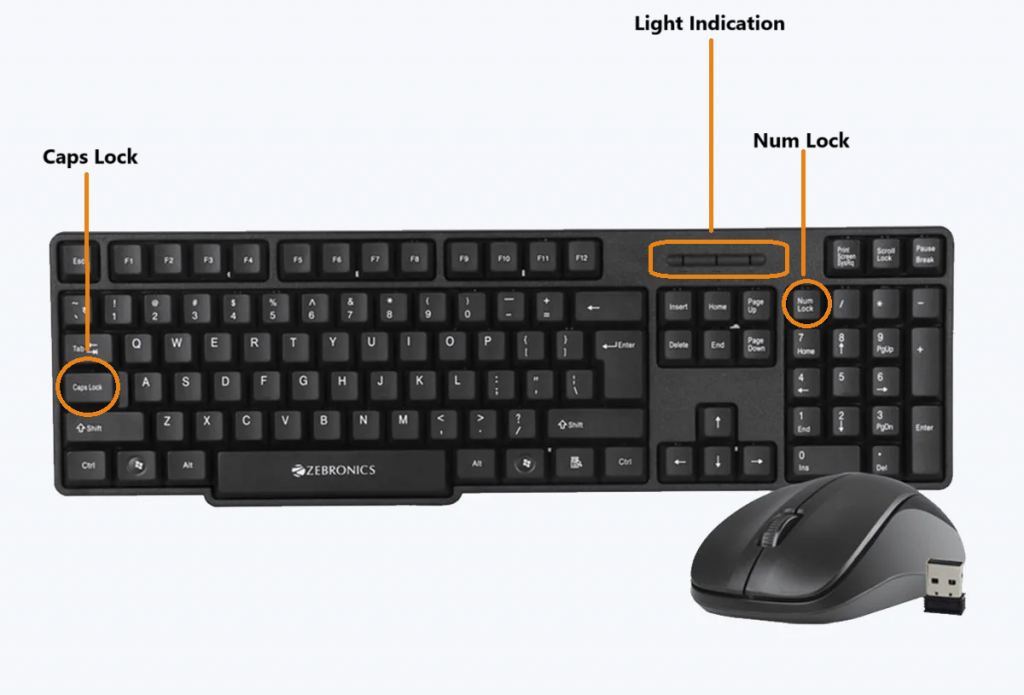
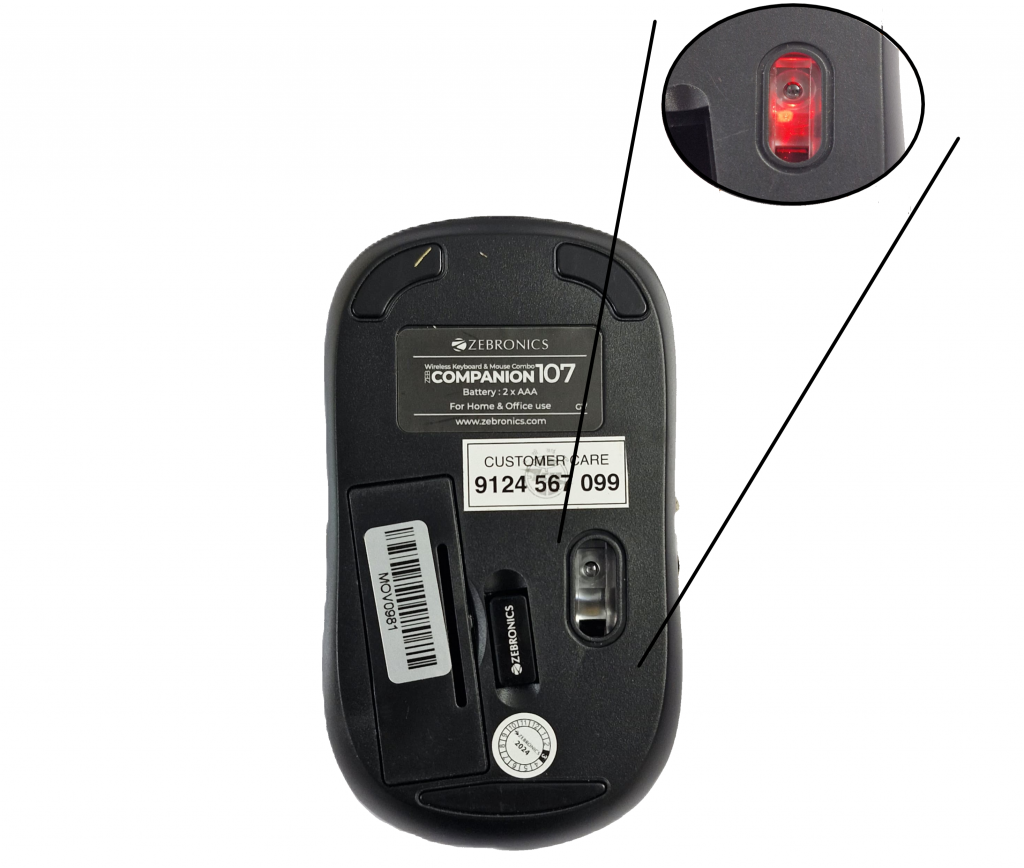
If there is no red-light indication, check the batteries and replace them with fresh ones if necessary, ensuring the correct polarity.
3. Product Support
The mouse and keyboard are mapped to a serial number and a QR code, which can also be scanned for the product serial number. This is to be provided to the support staff during the lodging of a product issue/complaint for easy identification of the product.
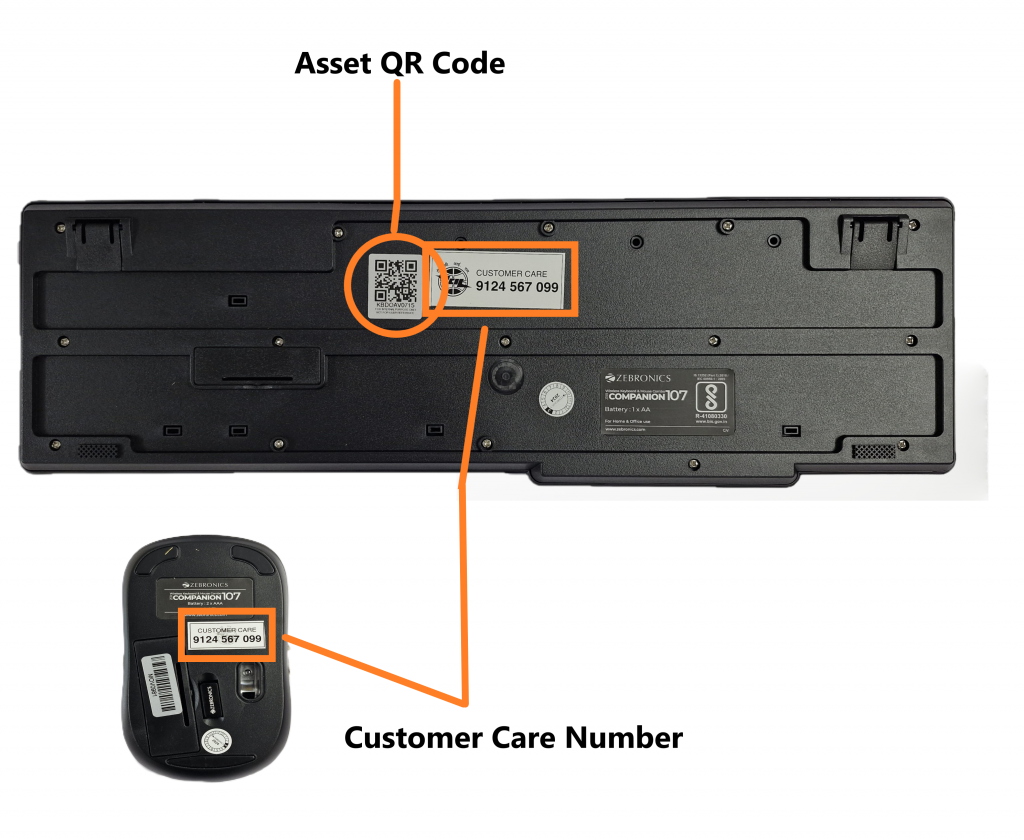
The product is provided with a customer care contact number. You can raise the product issue with the help of the serial number mentioned or by scanning the QR to fetch the serial number.
For any queries or further assistance, please contact our Customer Support:
- Phone: 9124 567 099
Email: helpdesk@ictschoollab.com