1. Overview
1a. Purpose
The TP-Link – Router is a standalone wireless router that uses a cellular SIM card to access the Internet instead of a phone line or fiber cable. It has a mobile internet modem to connect to widely deployed 4G mobile broadband networks.
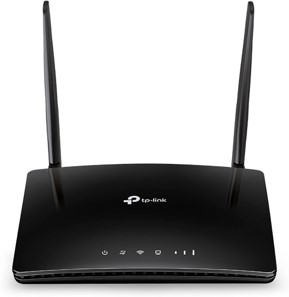
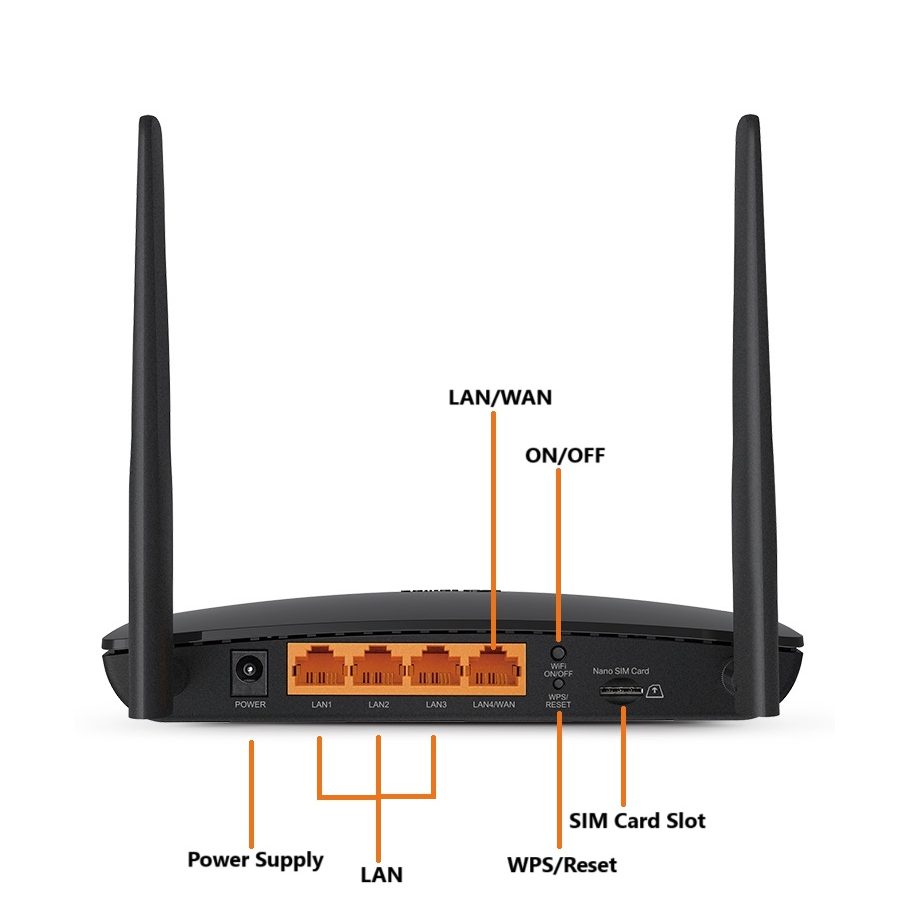
NOTE: It also has a WAN port provided for a phone line or fiber cable.
This flexibility ensures reliable internet connectivity in various scenarios.
1b. Network and Connectivity
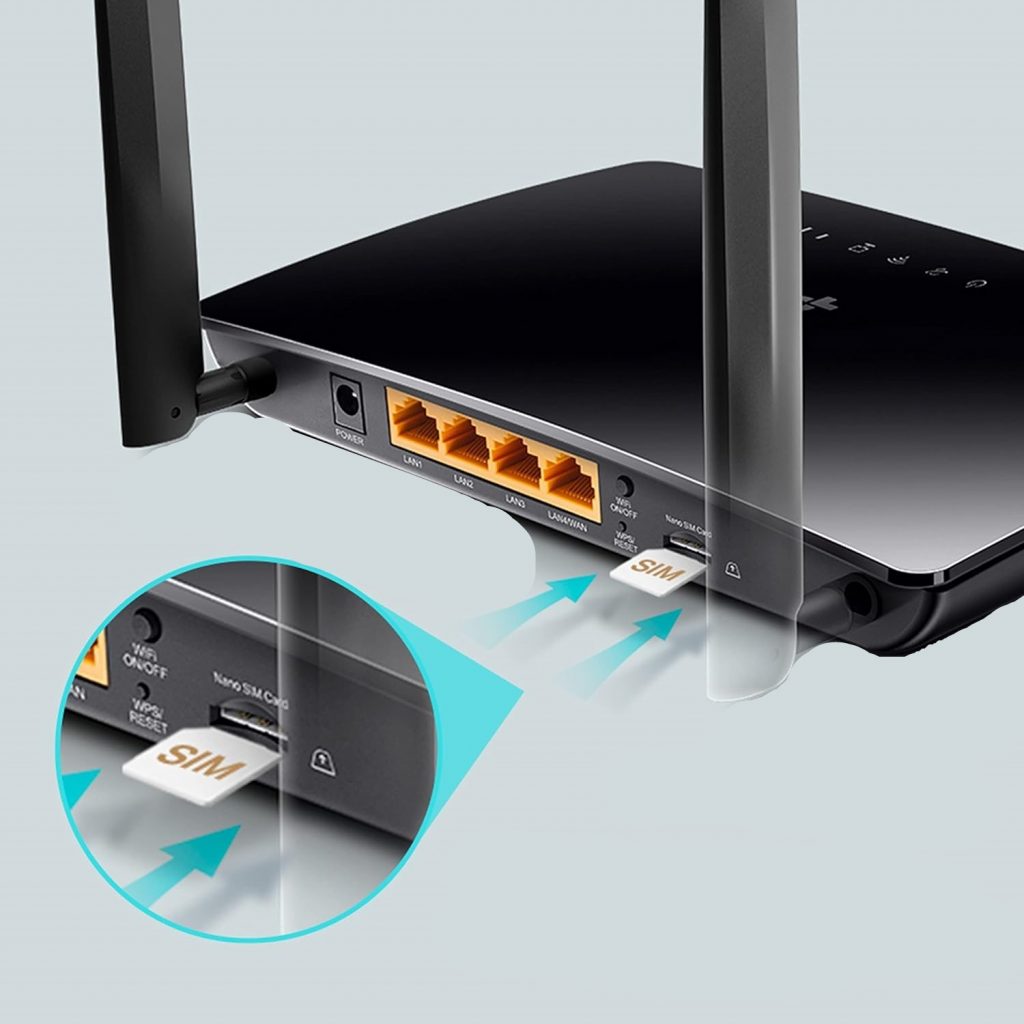
The user can insert a 4G-enabled nano-sim in the available sim port to provide internet to the router. There is a secondary option to connect via WAN cable.
Once the Router is provided with Internet, it can be connected wirelessly to the IFP display through Wi-Fi.
Wireless
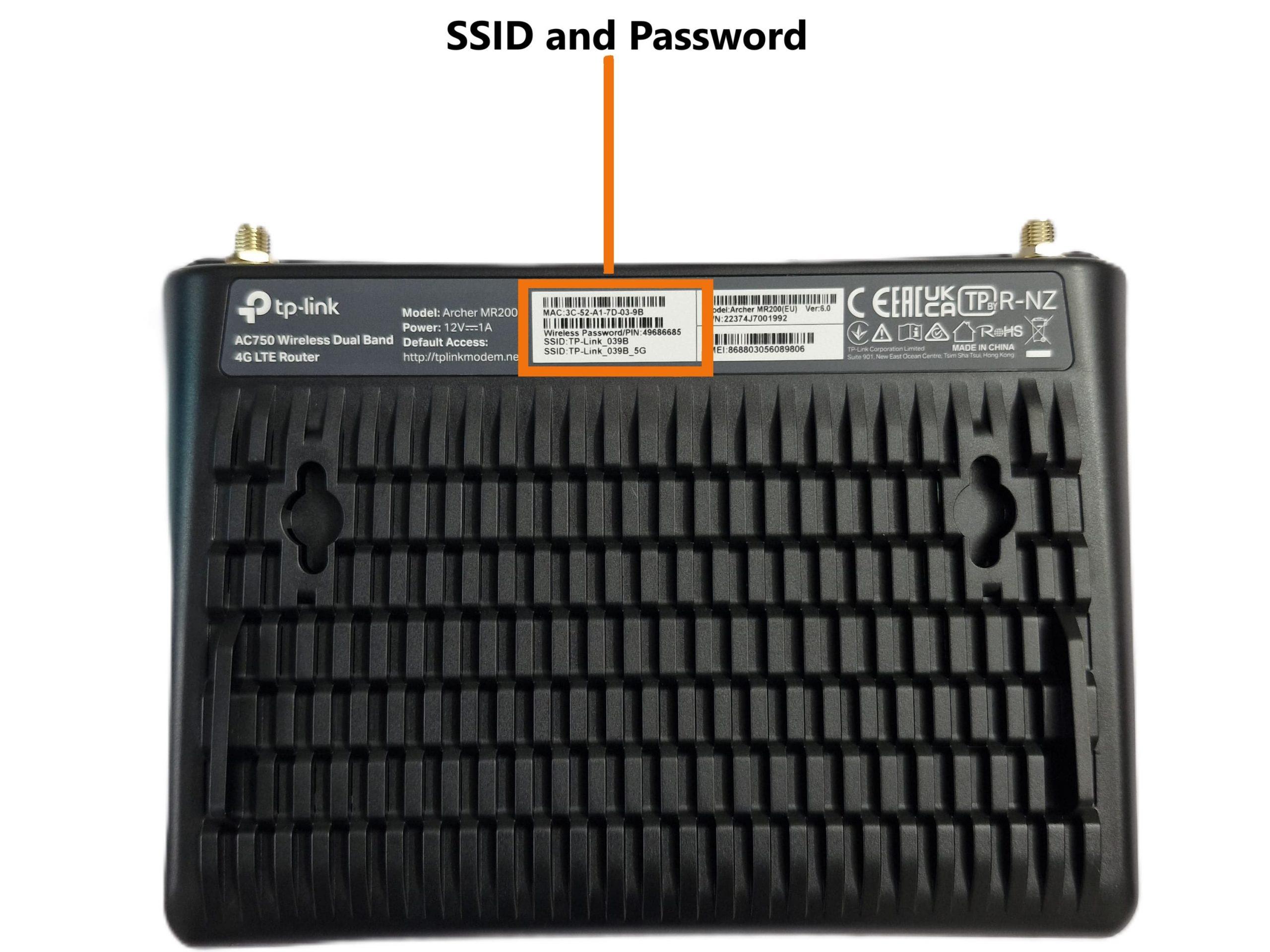
- Find the SSID (network name) and wireless password printed on the label at the bottom of the router.
- Click the settings icon on the IFP display and select Internet, then select the SSID and enter the password to join the network.
1c. Indicators
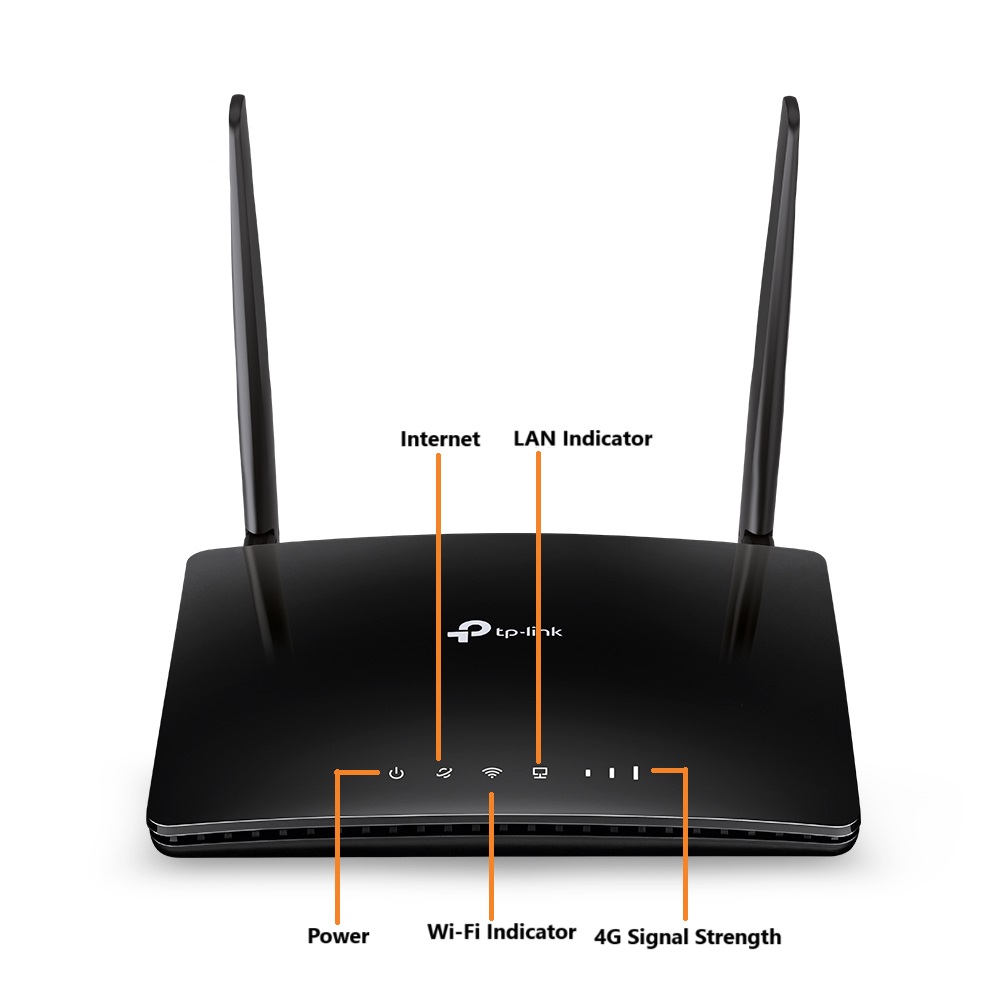
Check the LEDs’ status. If the Internet LED (🌐) is on, your router is connected to the internet successfully.
| LED | Status | Indication |
| Power | On/Off | Power is on or off. |
| Flashing | The system is starting up, or the firmware is being upgraded. Do not disconnect or power off your router. | |
| Internet | On/Off | Internet service is available or unavailable. |
| Wi-Fi | On/Off | Wi-Fi is enabled or disabled. |
| Flashing | WPS connection is in progress. This may take up to 2 minutes. | |
| LAN | On | At least one LAN port is connected. |
| Off | LAN port is not connected properly or No LAN port connected | |
| Signal Strength | On | Indicates the signal strength received from the mobile internet network. More lit bars indicate better signal strength. |
| Off | There is no mobile internet signal. |
2. Router Set-up
2a. Inserting the SIM Card
- Locate the SIM Slot:
- The SIM slot is typically on the back or bottom of the router.
- Insert SIM Card:
- Insert the SIM card into the slot with the gold contacts facing down. Push until it clicks into place.
NOTE: For connectivity through 4G SIM mode, there is no need for Quick set – up.
2b. Switching to WAN Mode
If you wish to connect via WAN – ISP (Internet Service Provider), follow these steps:
Connecting WAN Cable
Insert WAN Cable
Connect the Ethernet cable from your modem or primary internet source to the WAN port on the TP-Link router.
Configuring WAN Mode
Access Web Interface
Open a web browser and enter .http://tplinkmodem.net or 192.168.1.1.
Log in with your admin credentials.
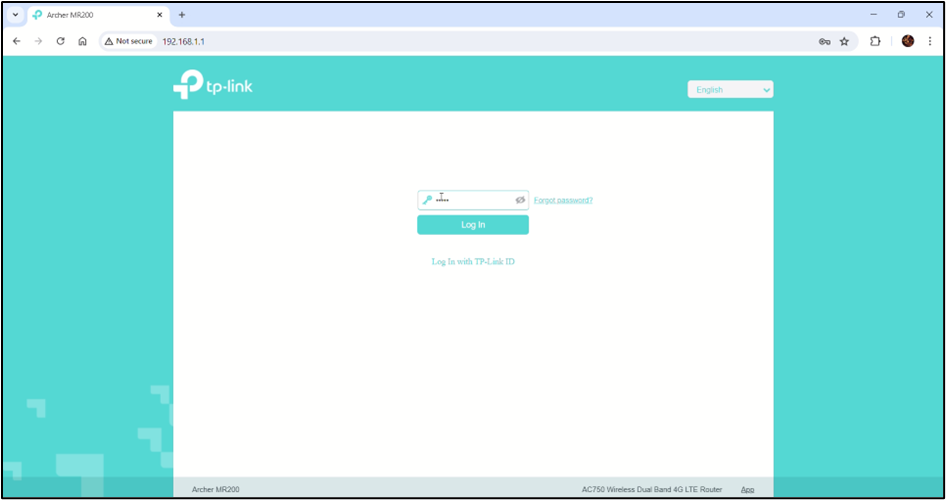
You can find the default user ID and password below the router.
Navigate to WAN Settings
- After you login, navigate to Advanced and then to Operation Mode.
- You can switch between 3G/4G router mode or WAN connection.
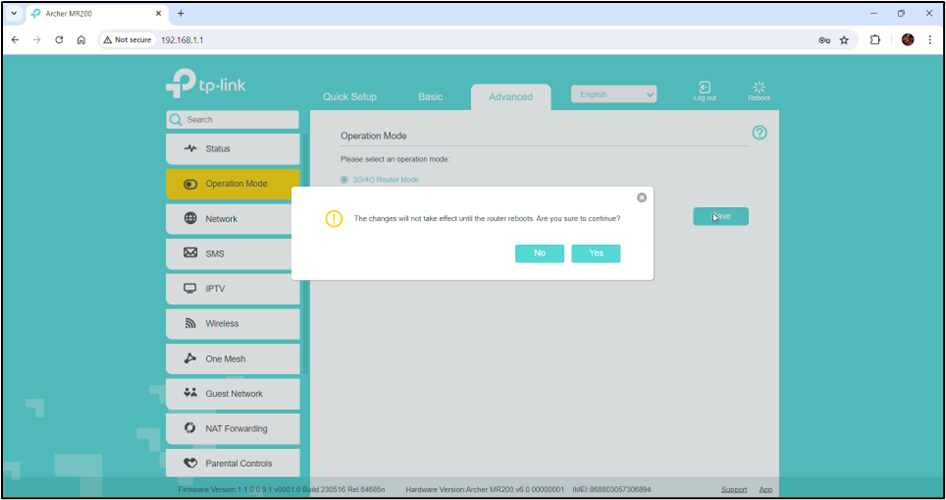
Select WAN Connection Type
Choose the appropriate connection type based on your requirements.
Quick WAN Set-up
In the first step of Quick Setup, you need to select the appropriate time zone and click Next.
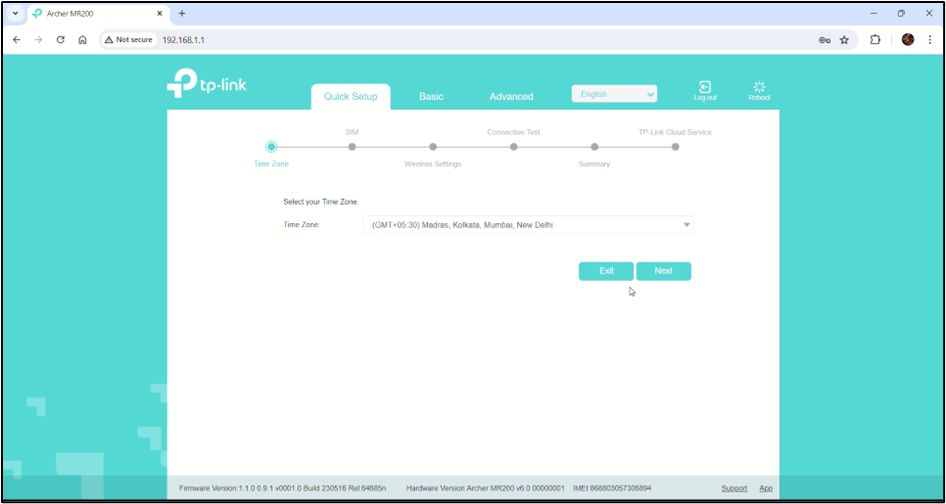
In the next step, you can change the Tp Link Portal username and password if necessary.
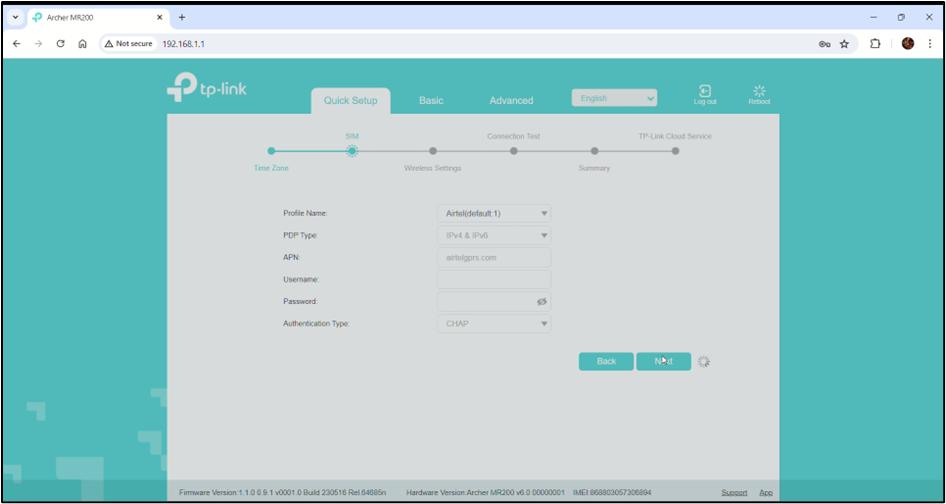
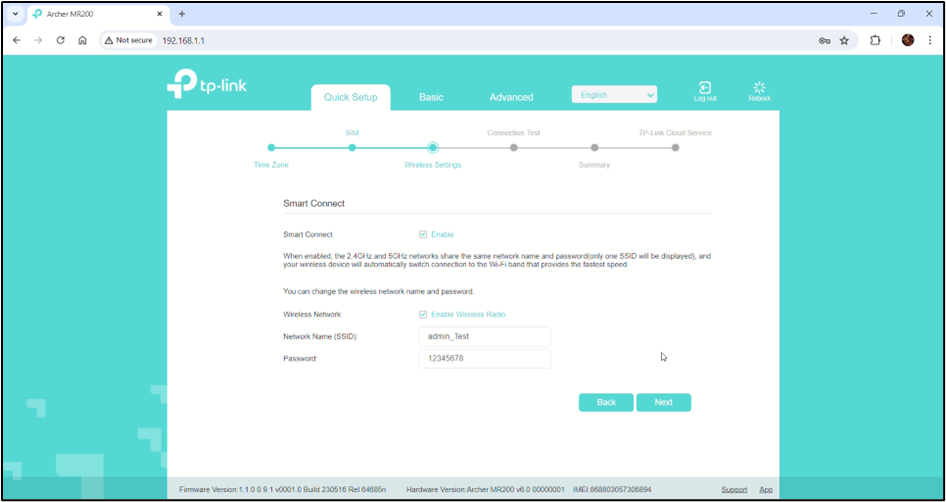
In the next step, you can enable wireless connectivity and enter a new network name and password for the router wireless connection.
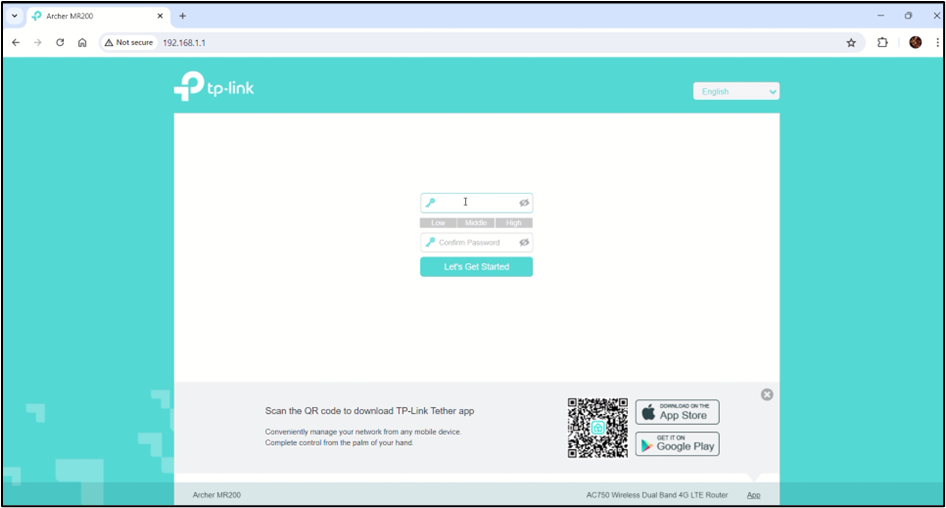
After clicking on Next, you will be prompted to enter a new password twice to confirm your new password for the router.
In the next window, the Internet will be tested, along with a summary page with all the updated information.
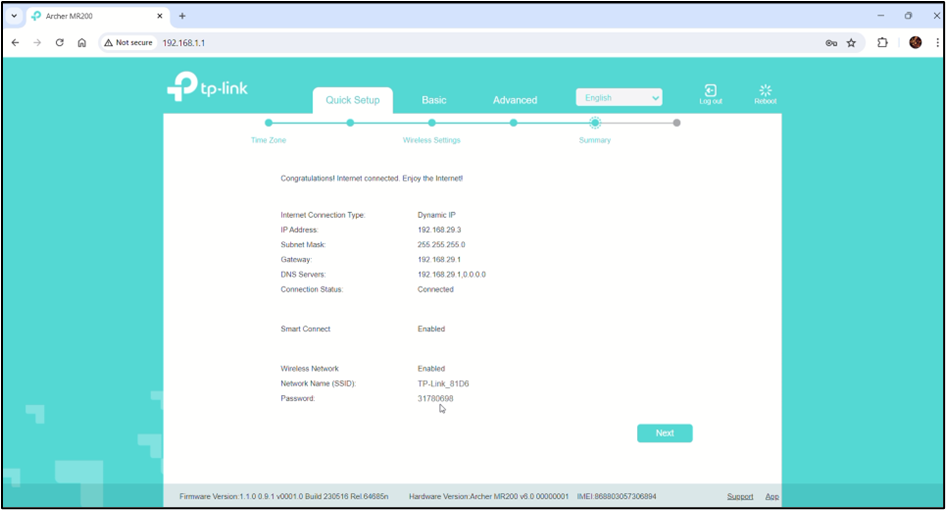
After clicking on Next, your network setup is successful.
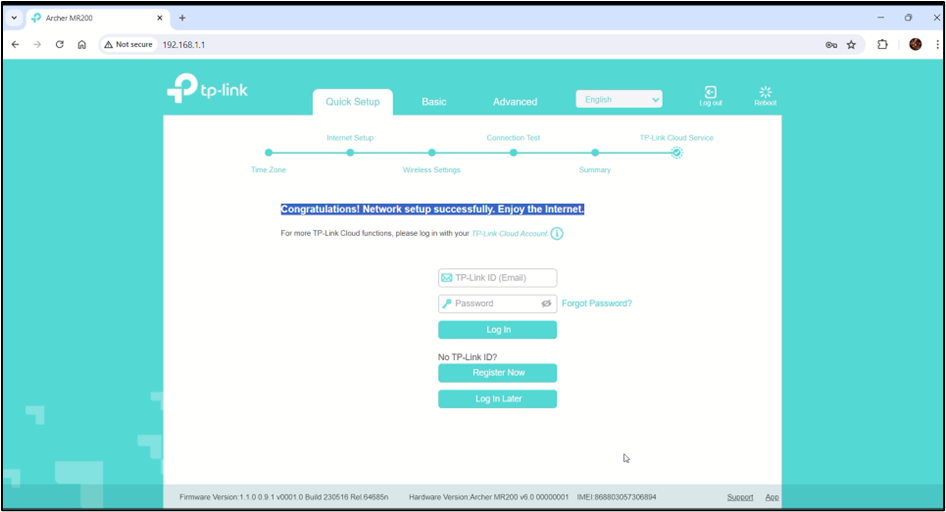
Testing the WAN Connection
- Check Connection Status:
- After the router reboots, check the status page in the web interface to ensure the WAN connection is active.
- Verify Internet Access:
- Open a web browser and navigate to a website to confirm that the internet connection is working.
3. Troubleshooting
- Make sure the router adaptor is connected properly and there is a proper flow of electricity to the router.
- Check that the 4G nano-sim is inserted properly and that the signal strength is full.
- Make sure the Wi-Fi indicator is ON to confirm the Internet connection.
Forgot the Admin Password:
- Reset the router to factory settings by pressing and holding the reset button for about 10 seconds.
4. Product Support
The TP-Link Router is mapped to a serial number and a QR code, which can also be scanned for the product serial number. It is to be provided to the support staff during the lodging of a product issue/complaint for easy identification of the product.
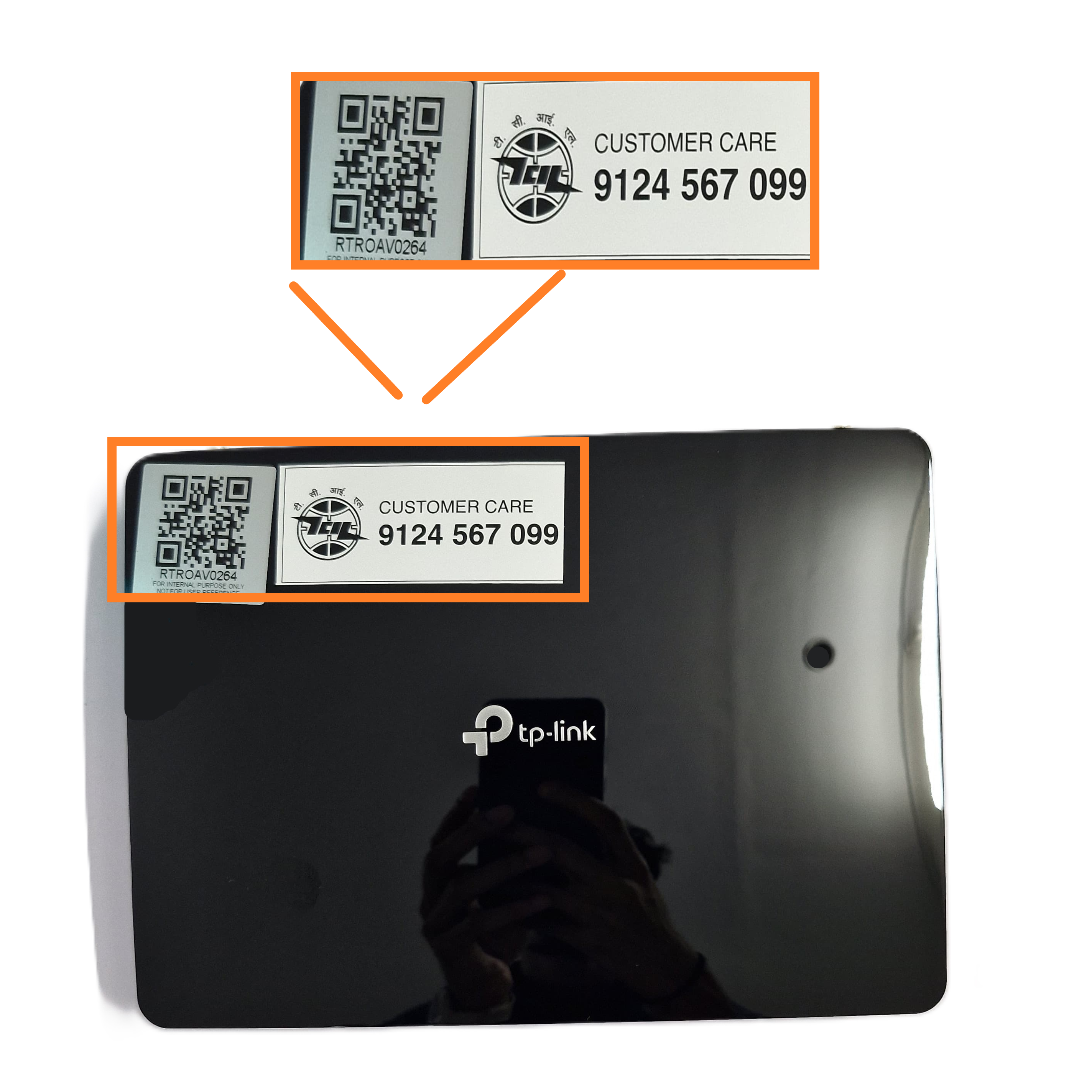
The product is provided with a customer care contact number. You can raise the product issue with the help of the serial number mentioned or by scanning the QR to fetch the serial number.
For any queries or further assistance, please contact our Customer Support:
- Phone: 9124 567 099
Email: helpdesk@ictschoollab.com