1. Overview
1a. Purpose:
A webcam is a small digital camera that captures and transmits video in real-time.
It is most commonly used for video conferencing, which allows people to see each other in real time over the internet. Webcams can also be used for classroom activities such as online classes, video conferencing, and recording lectures.
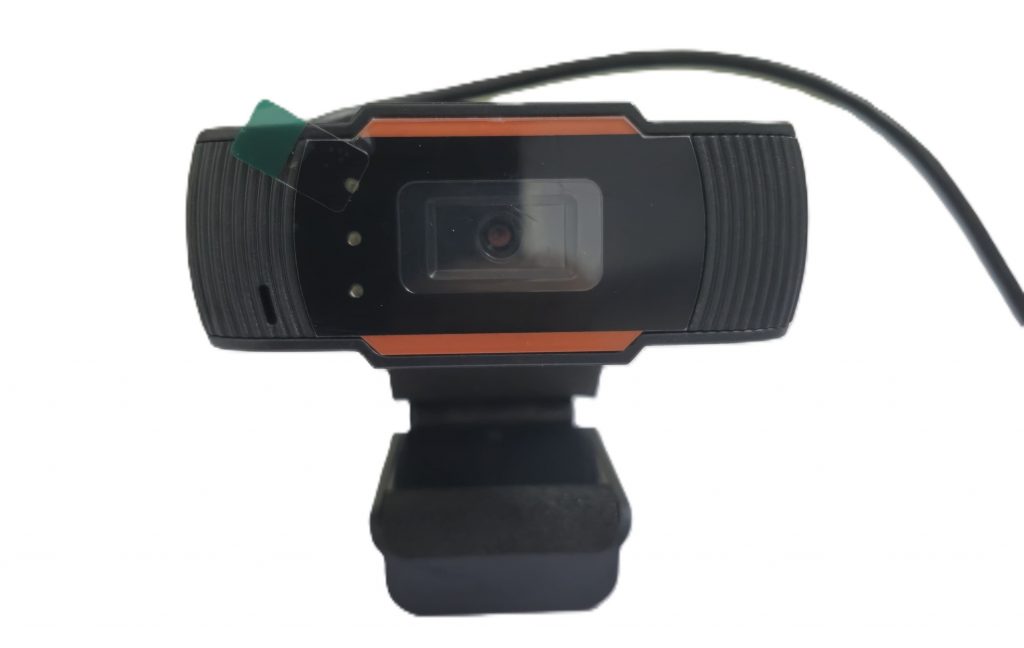
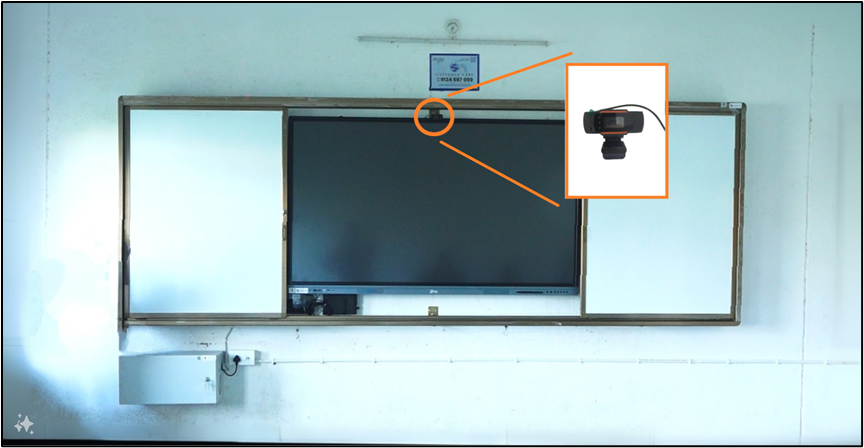
NOTE: Make sure the camera is properly fixed to the IFP Display, so it doesn’t get damaged while closing the wall mount panel.
1b. Connectivity
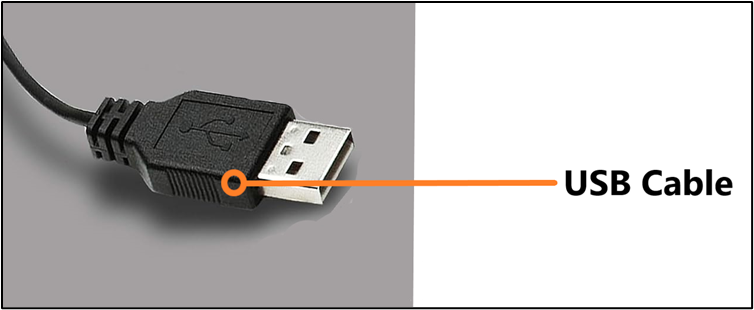
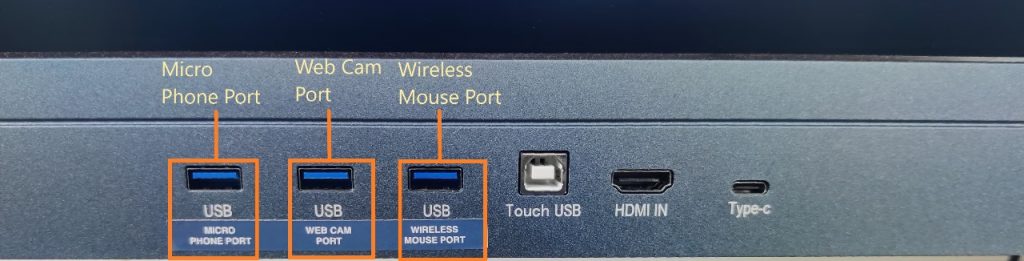
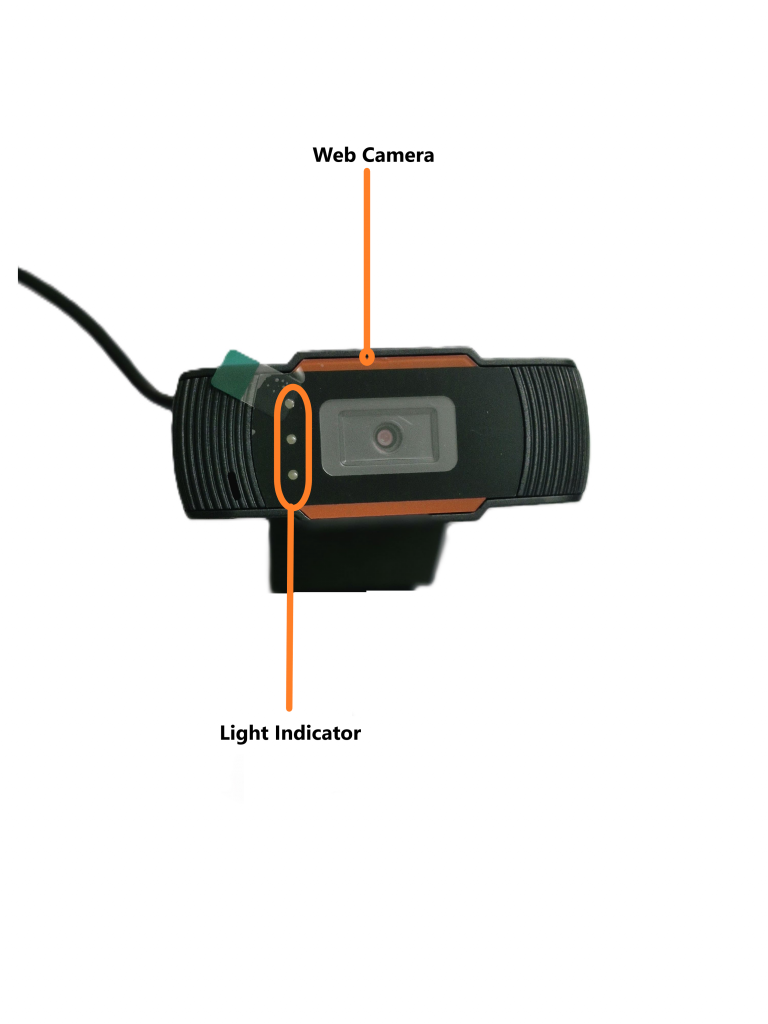
The Web Camera comes with a USB Cable attached, which is to be plugged into the designated port on the IFP display to use the Camera for Teaching and attending conferences. You can open the default Camera application on the IFP display or Windows Camera in the OPS to test the camera.
1c. Indicators
Once the USB is connected to the designated port, check for a bright white light beside the camera. If the light is ON that might be an indication of the camera being connected to the IFP Panel
2. Troubleshooting
If your webcam isn’t working as expected, here are some steps you can take to troubleshoot the problem
Basic Checks:
Restart your computer. A simple restart can often fix minor software glitches.
Check the connection. For external webcams, make sure the USB cable is securely plugged into both the webcam and your computer’s USB port. Try a different USB port if it is available.
Test with a different application: If your webcam isn’t working in one program, try using it with another application, like the built-in Camera app (Windows) or Photo Booth (Mac). This can help identify if the issue is with the specific program or the webcam itself.
3. Product Support
The Web Camera is mapped to a serial number and a QR code, which can also be scanned for the product serial number. It is to be provided to the support staff during the lodging of a product issue/complaint for easy identification of the product.
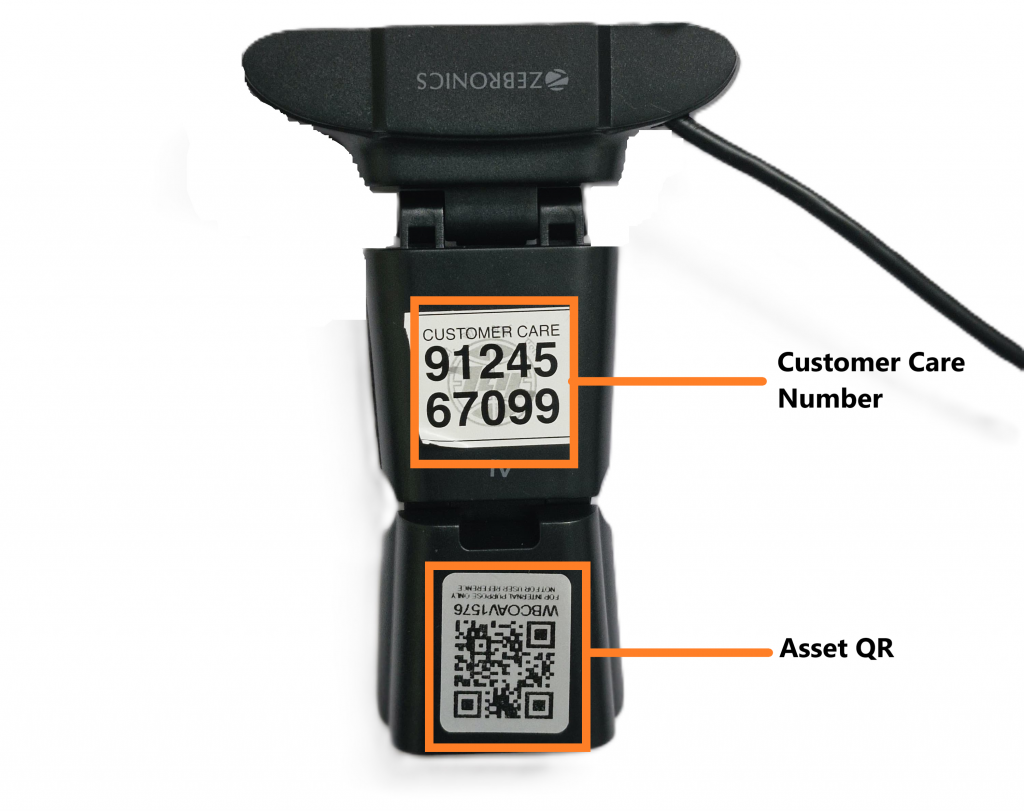
The product is provided with a customer care contact number. You can raise the product issue with the help of the serial number mentioned or by scanning the QR to fetch the serial number.
For any queries or further assistance, please contact our Customer Support:
- Phone: 9124 567 099
- Email: helpdesk@ictschoollab.com