1. Overview
1a. Purpose
The Interactive Flat Panel is a medium that allows for better student interaction by delivering interactive content.
This comprises a large touchscreen display along with the presence of an Android motherboard and an OPS (Open Pluggable Specification) that allows for better interaction and management.
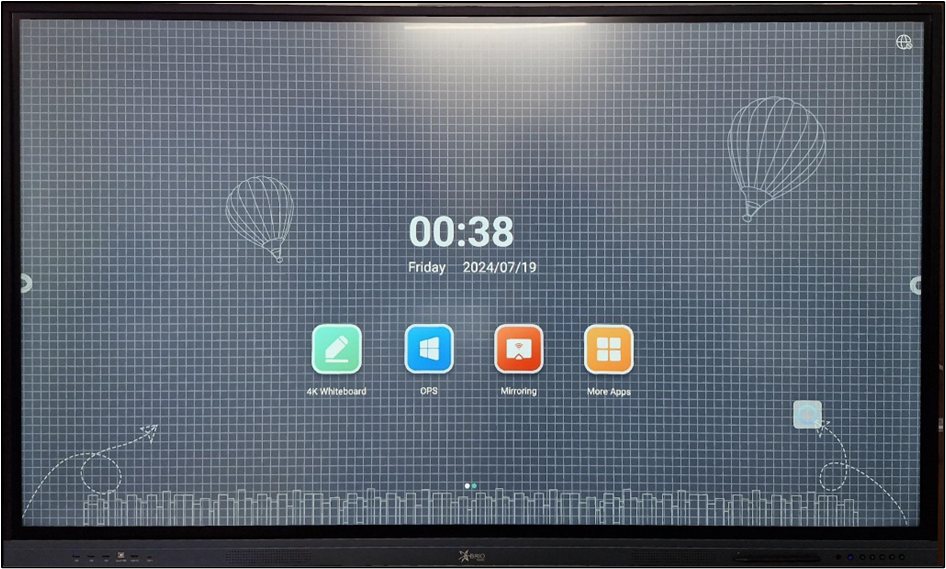
The Interactive Flat Panel (IFP) Display is designed to enhance classroom engagement and interactivity. It combines the functionality of a traditional whiteboard with the power of a computer, allowing teachers to deliver dynamic lessons and interact with digital content in real-time.
1b. Functionality
Touchscreen Interaction:
Multi-Touch Capability: Allows multiple users to interact with the screen simultaneously, supporting collaborative activities and group work.
Touch Gestures: Supports common touch gestures such as tap, swipe, pinch, and zoom, providing intuitive navigation and control.
Annotation and Drawing:
On-Screen Annotation: Teachers can write, draw, and highlight directly on the screen using a stylus or their fingers, making it easy to emphasize key points and illustrate concepts.
Digital Whiteboard: The IFP can function as a digital whiteboard, offering various tools such as pens, erasers, and shapes to facilitate lesson planning and delivery
Content Sharing and Presentation:
Screen Mirroring: Allows teachers to mirror their laptop or mobile device screen onto the IFP display, making it easy to share presentations, videos, and other content.
File Management: Teachers can open, edit, and save documents directly on the IFP, eliminating the need for a separate computer.
Video Conference: It can also be used for classroom activities such as online classes, video conferencing, and recording lectures via webcam.
Interactive Software and Apps:
Educational Software: The IFP comes preloaded with educational software and apps designed to support various subjects and teaching methods.
App Store Access: Teachers can download additional apps from an app store to customize their IFP according to their needs and preferences.
Audio and Video Playback:
Integrated Speakers: The IFP includes built-in speakers, providing clear audio for videos, presentations, and interactive lessons.
High-Definition Display: Supports HD video playback, ensuring high-quality visuals for all types of media content.
Connectivity and Integration:
Multiple Ports: This includes various ports such as HDMI, USB, VGA, and Ethernet, allowing for easy connection to computers, document cameras, and other peripherals.
Wireless Connectivity: Supports Wi-Fi and Bluetooth, enabling wireless connections to devices and the internet for seamless integration.
Collaboration Tools:
Screen Sharing: Enables students to share their screens with the IFP, facilitating group discussions and collaborative projects.
Interactive Polls and Quizzes: Teachers can create and conduct interactive polls and quizzes, engaging students in real-time and assessing their understanding.
1c. About device
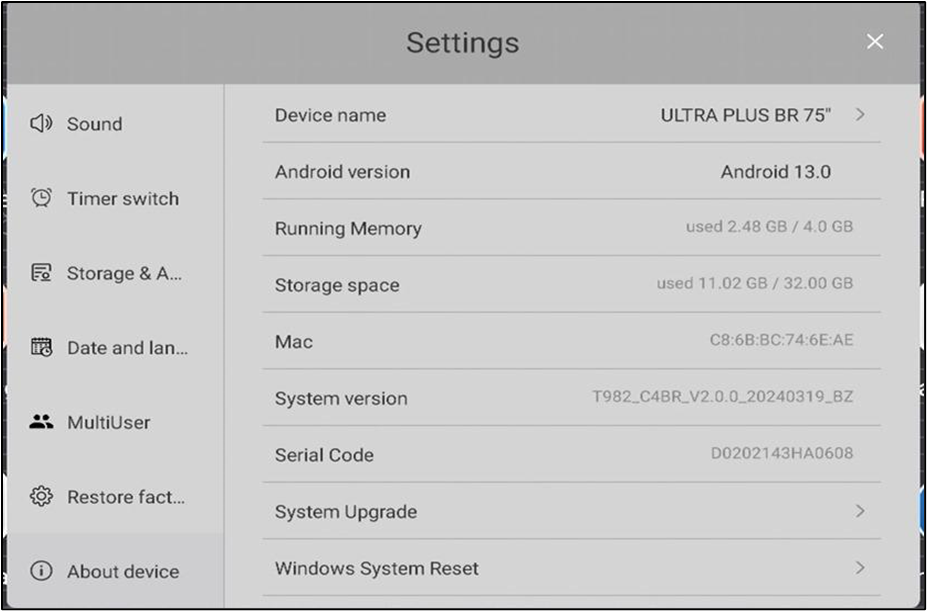
The following are the basic details of the Android, such as the Android version the system is running and the Storage of the device
| Component | Specification |
|---|---|
| ROM | 32GB Memory |
| RAM | 4 GB |
| Operating System | Android 13 |
2. Ports
The IFP Display has multiple ports available to connect different accessories and equipment for better teaching experience.

Ports are available at the front of IFP Display
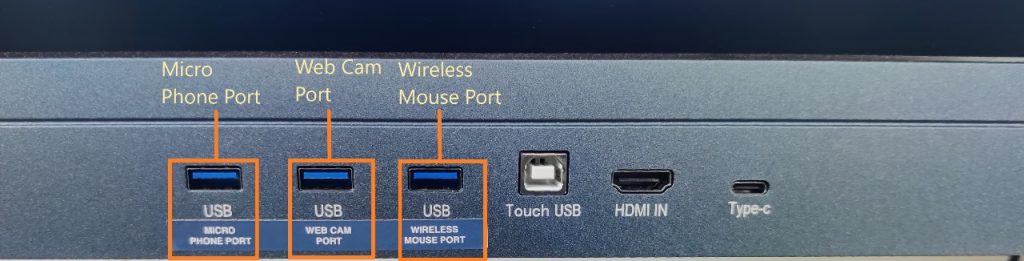
For better user friendliness, we have defined the use of each USB port
3. Modes
- The IFP display can be used in two modes; 1. Android Version; 2. Windows Version
- The IFP display comes inbuilt with the Android operating system, whereas we can attach an OPS at the designated place in the back panel.
4. Controls
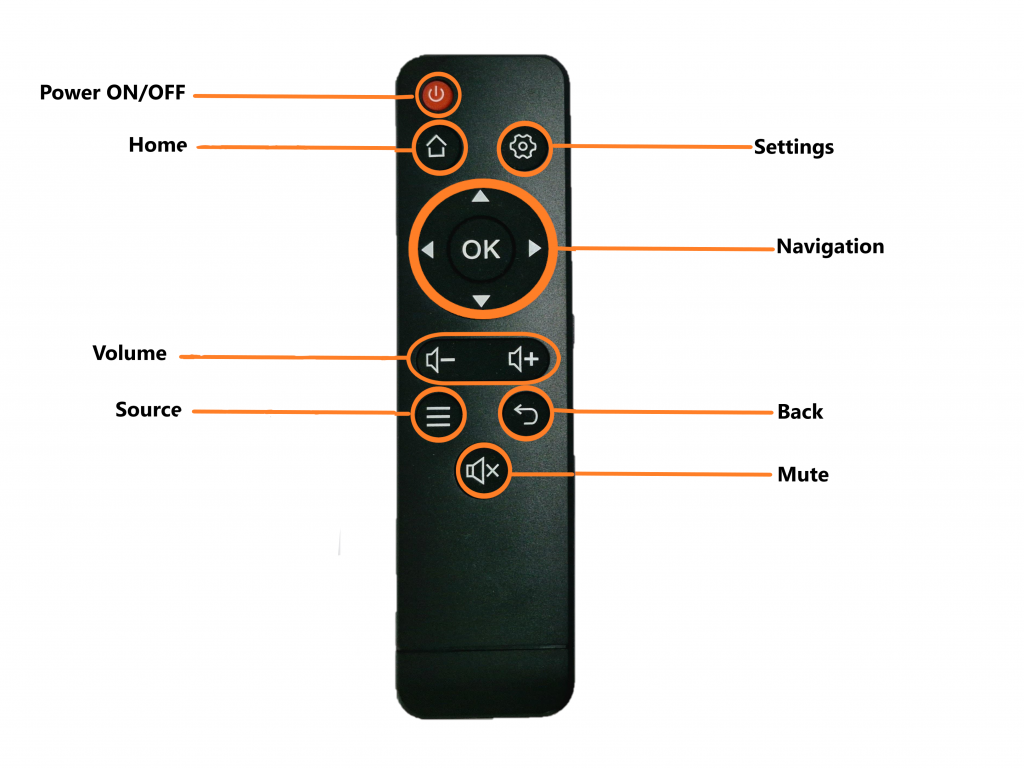
Remote
- Power – To turn ON/OFF the IFP Display
- Home – Navigates to Home screen of IFP display
- Settings – To open settings window
- Navigation & OK – To navigate to different Pages, applications and other Media and OK button works as an ENTER button
- Volume – To increase/decrease the speaker sound in the IFP display
- Source – It helps in switching between different modes like OPS, HDMI and Android.
- Back – This button navigates us to go back/previous action.
- Mute – This button mutes the sound of the IFP display.
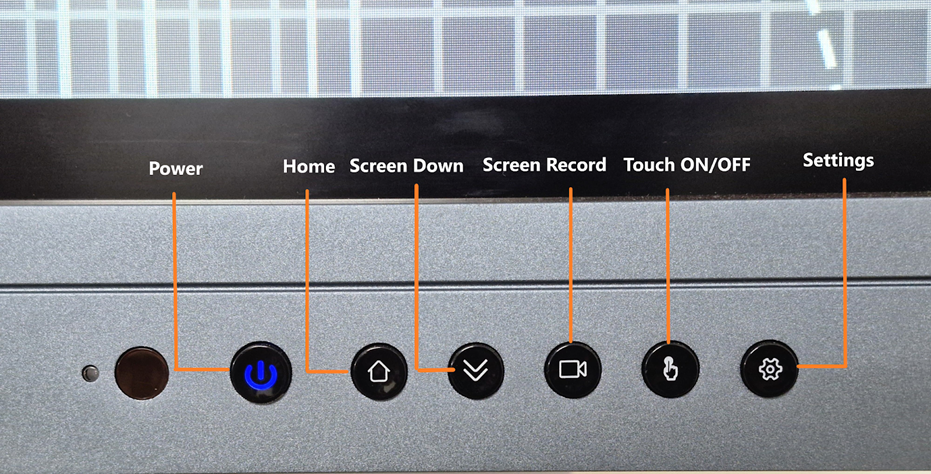
Buttons
- Power button – To turn ON/OFF the IFP display. Lock press to turn off when it’s ON
- Home – Navigates to home screen from any window
- Screen Down – It helps with better accessibility to the top of the screen by reducing screen size.
- Screen Record – It helps record the activity on the Screen
- Touch – It helps with enabling/disabling the touch function
- Settings – The button opens the settings window.
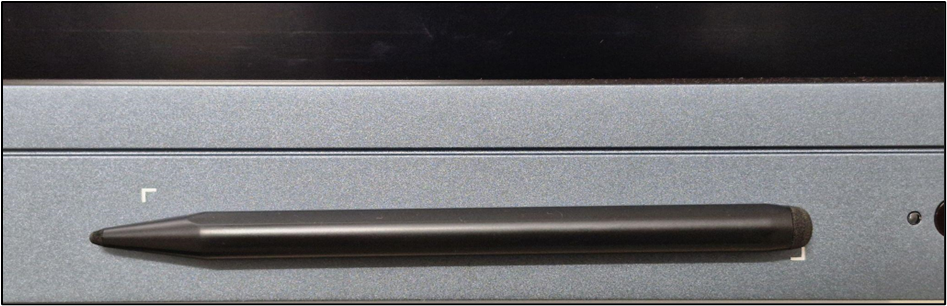
STYLUS/TOUCH PEN – Helps as an Input device; touch functions.
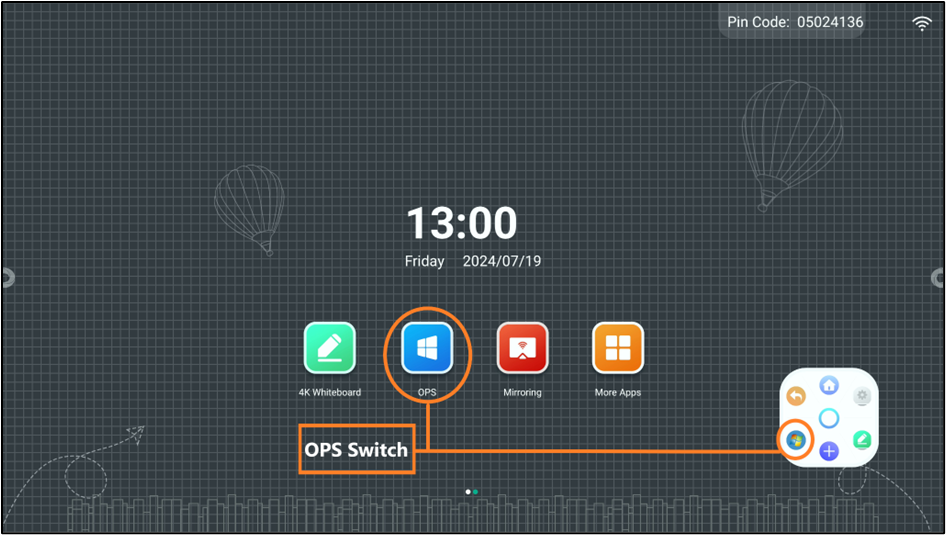
5. Software and Connectivity
IFP to OPS – SWITCH BUTTONS.
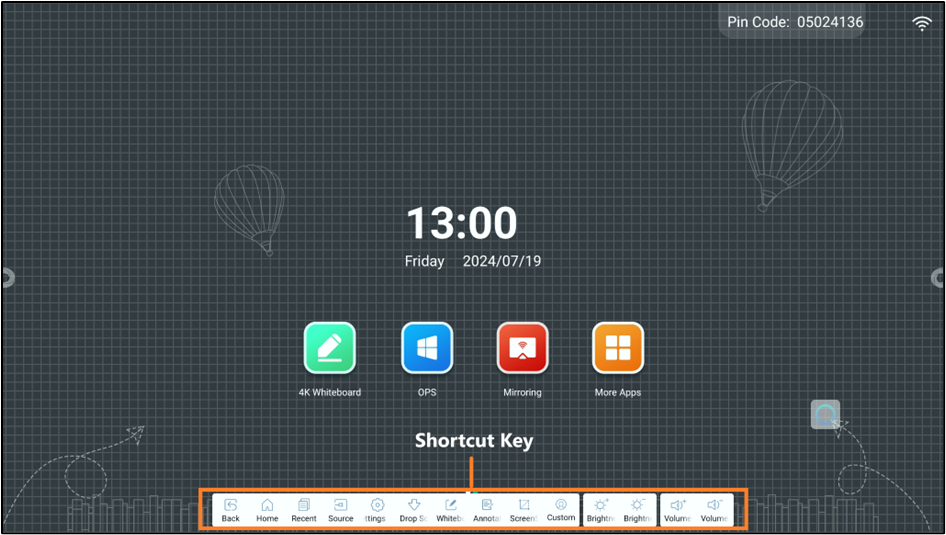
SHORTCUT BAR
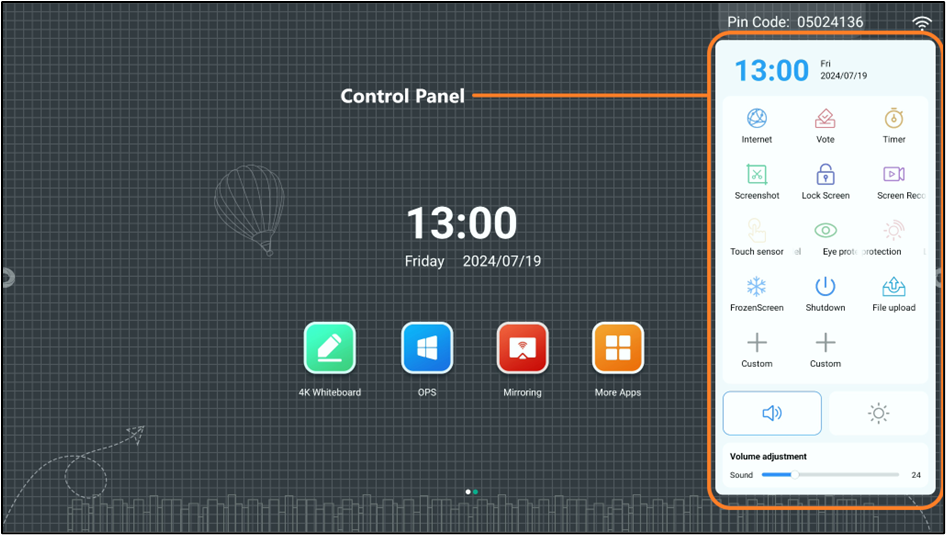
SIDE – CONTROL PANEL/BAR
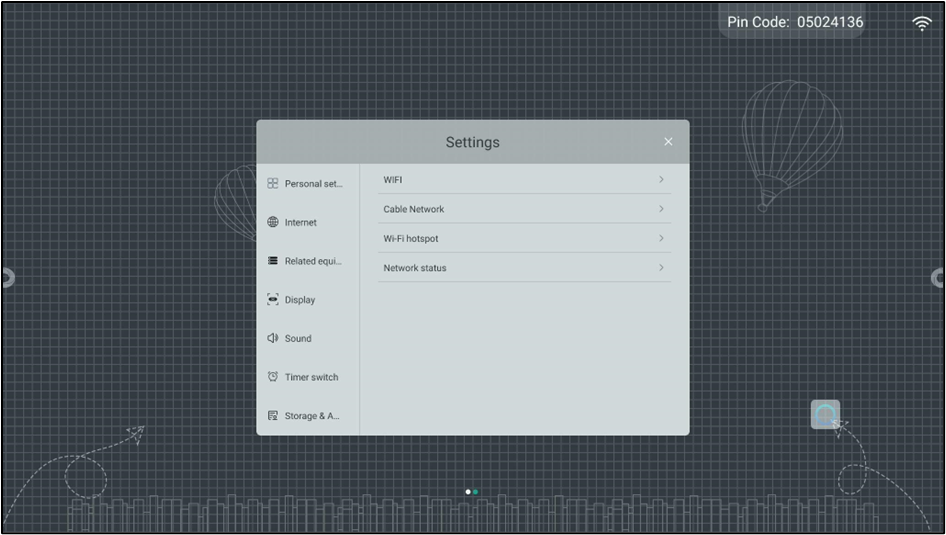
Wi-Fi SETTINGS
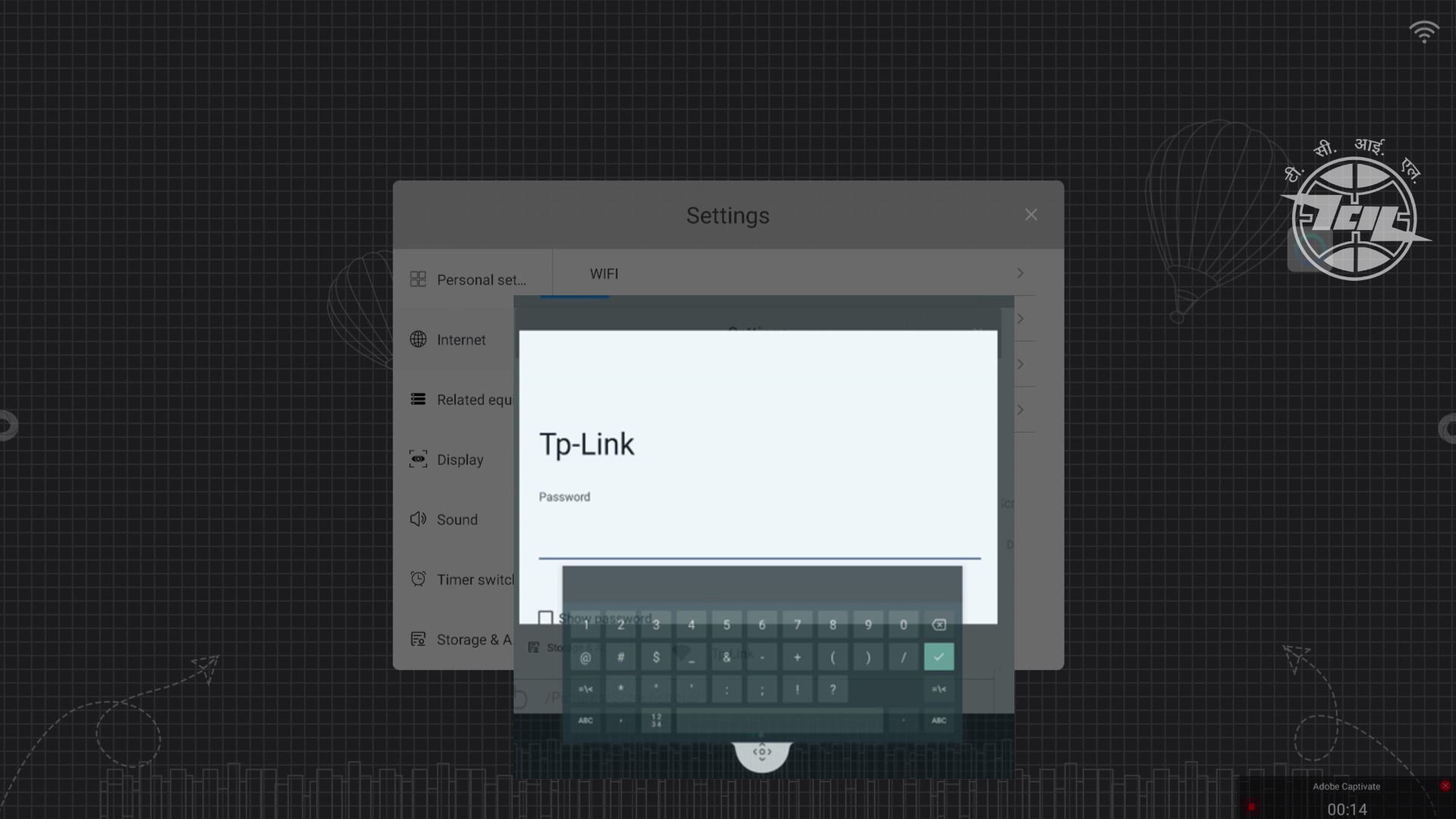
ADDING A NEW NETWORK
Once you click on the Wi-Fi option, a list of available networks will appear. You can select your desired network, enter the required information, and connect to it
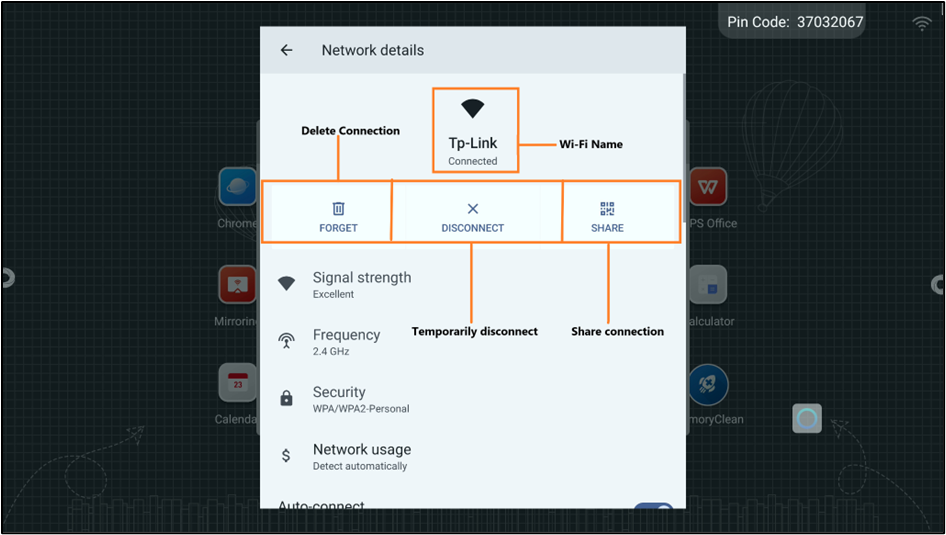
CONNECTED NETWORK – DETAILS
6. Applications
The following is a list of basic applications which come pre-installed; you can download any other necessary application from Play store
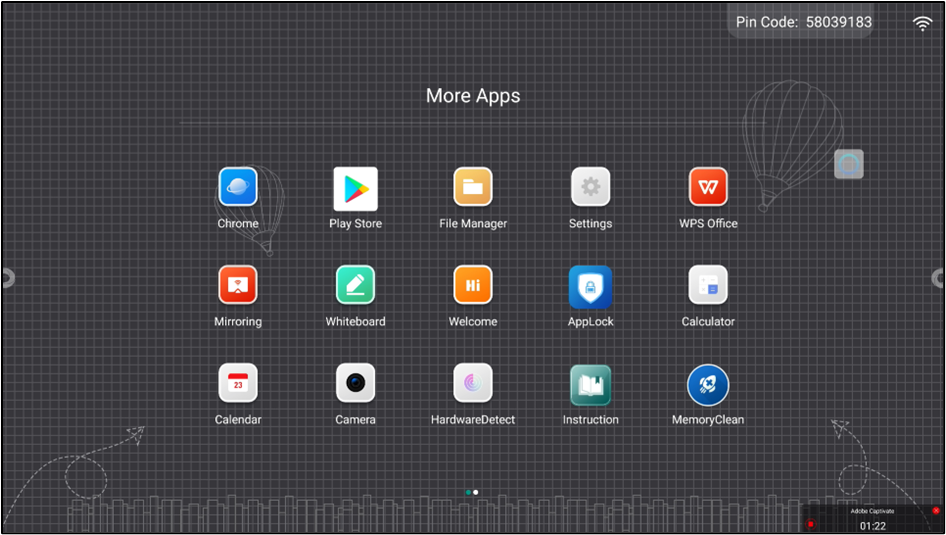
List if applications and their functions:
| App Icon | Description |
|---|---|
  | Chrome is a web browser developed by Google. It is designed for speed, simplicity, and security. Chrome provides a clean user interface and integrates features like Google search and Google services, making it easy to browse the web, manage bookmarks, and access various extensions for enhanced functionality |
  | The Play Store is an online marketplace developed by Google for Android devices. It provides access to a wide range of digital content, including apps, games, music, movies, TV shows, books, and more. Users can browse, download, and install applications directly on their Android devices. |
  | A file manager is a software application that provides a user interface to manage files and folders on a computer or mobile device. It allows users to perform tasks such as creating, opening, copying, moving, renaming, and deleting files and directories. |
  | The Settings app is a system application on computers, smartphones, and tablets that allows users to configure and customize their device’s preferences and functionalities. It provides access to various system options and controls, including Network, Bluetooth, Display, Sound, etc. |
  | The WPS Office allows you to create, edit, and view documents, spreadsheets, presentations, and PDFs for free. The interface is similar to Microsoft Office, making it easy to use. |
  | Screen mirroring is a technology that allows you to duplicate the display of your computer, smartphone, or tablet onto another screen, such as IFP display. This enables you to share content, such as videos, photos, presentations, or any other visible data, in real-time |
  | A 4K whiteboard app for teaching is a digital application designed to leverage the high resolution of 4K displays to enhance the educational experience. It provides a virtual workspace where teachers can write, draw, and present information with exceptional clarity. |
  | The application helps teachers design interactive documents similar to PowerPoint. It helps teachers make learning more interactive. |
  | App Lock is a security feature or app that adds an extra layer of protection to your IFP display. This prevents unauthorized users from accessing your sensitive information. |
  | It helps in performing basic arithmetic (addition, subtraction, multiplication, and division) and more complex calculations like percentages, exponents, and even trigonometry. So, we can save time and effort on manual calculations. |
  | Calendars define how we split years into months, weeks, and days. Calendars are tools to help us keep track of appointments, deadlines, events, birthdays, and anything else we need to remember. It helps you schedule events, set reminders, and keep your life organized. |
  | The Camera app on your Android device is your go-to tool for capturing images and videos to improve teaching experience |
  | The following application helps to check the status and condition of all the hardware components and identify any issues with them. |
  | Instruction application is a user manual that guides us on how to properly use the IFP |
  | “Memory clean” on Android doesn’t typically refer to a specific built-in feature but rather the general concept of freeing up RAM (Random Access Memory) to improve your IFP display performance. |
  | Microsoft Teams is a collaboration platform designed to streamline communication and teamwork within organizations. Teams lets you chat with individuals or groups, conduct video calls with colleagues, and even host online meetings with screen sharing capabilities. |
  | Vridhee LMS (Learning Management System) is a software application used to plan, deliver, and manage educational courses or training programs. It helps educators create and organize course content, track student progress, and facilitate communication between teachers and students. Essentially, it’s a digital platform that streamlines the learning process. |
  | Vridhee LMS offline is similar to the Vridhee LMS application, the difference being that this application can be used offline, and the usage and activities sync once the internet is connected. |
  | Vridhee Track helps the teacher and management track the usage and other teaching activities on the LMS application. It works as a dashboard to track all activities. |
  | Zoom is a popular video conferencing platform that lets you connect with others virtually You can share your screen, use chat features, and even record meetings for later reference. |
7. Troubleshooting
Power and Basic Checks:
An Interactive Flat Panel (IFP) can experience various issues. Here’s a guide to troubleshooting common problems:
Power Issues:
Ensure the IFP is plugged in and turned on properly. Check the power cord for damage and try a different outlet. Verify that the LED indicator light reflects the correct power state (on, standby, etc).
Input Source:
Ensure the IFP is plugged in and turned on properly. Check the power cord for damage and try a different outlet. Verify that the LED indicator light reflects the correct power state (on, standby, etc).
Remote Control:
Ensure the IFP is plugged in and turned on properly. Check the power cord for damage and try a different outlet. Verify that the LED indicator light reflects the correct power state (on, standby, etc).
Display Issues:
No Picture
Verify the connection between the IFP and the source device is secure (check cables for damage).Try a different cable (e.g., HDMI) to rule out a faulty cable. Ensure the source device is powered on and functioning correctly.
Picture Quality
Adjust the picture settings on the IFP using the on-screen menu (brightness, contrast, etc.) Check the resolution settings of both the IFP and the source device for compatibility.
Touchscreen Issues:
Unresponsive Touch
Clean the IFP screen with a soft, dry cloth (avoid harsh chemicals). Ensure your fingers are clean or styluses used are compatible and clean. Check the IFP’s touch settings in the on-screen menu for calibration or activation.
Inaccurate Touch
Similar to unresponsive touch, ensure the screen is clean.
Software and connection issues:
Connectivity Issues (if applicable):
For network-related applications, verify a stable internet connection. Ensure Wi-Fi is enabled and connected to the correct network. Check for software updates.
8. Product Support
The IFP display is mapped to a serial number and a QR code, which can also be scanned for the product serial number. It is to be provided to the support staff during the lodging of a product issue/complaint for easy identification of the product.
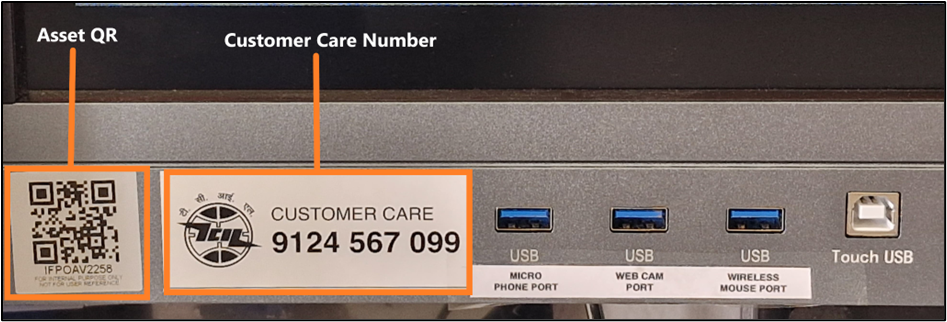
The product is provided with a customer care contact number. You can raise the product issue with the help of the serial number mentioned or by scanning the QR to fetch the serial number.
For any queries or further assistance, please contact our Customer Support:
- Phone: 9124 567 099
Email: helpdesk@ictschoollab.com